


Supporting collaboration across UT San Antonio
May 7, 2026
To support seamless collaboration between the UT San Antonio academic and health campus communities, the university is implementing Microsoft Multitenant Organization (MTO). MTO is a “technology enablement” effort that will help faculty and staff work together more easily during and after the integration process, while allowing each campus to retain its own systems, data, and governance.
“Bringing together our academic and health technology environments is inherently complex work, requiring us to align distinct systems, policies and operating models without compromising accessibility, resiliency or security,” said Michael Schnabel, senior vice president & chief information officer. “Capabilities like Microsoft Multitenant Organization represent a pragmatic first step, one that reduces friction and enables collaboration today while we continue building toward an integrated, long-term model.”
What is Microsoft Multitenant Organization (MTO)?
Microsoft Multitenant Organization (MTO) allows academic campus and health campus users—who still have separate Microsoft 365 systems—to work together more easily.
Think of a Microsoft 365 environment as each campus’s own digital workspace, where email, Teams, calendars, and files live. MTO securely connects these workspaces so people can find, message, meet and schedule time with one another without creating new accounts, switching systems or fully merging.
MTO matters for UT San Antonio because it:
- Enables cross-campus Microsoft Teams chat, meetings, and calls
- Allows search and contact lookup across campuses in Teams and Outlook
- Improves communication for leadership, faculty and staff
- Reduces confusion from duplicate accounts
Key capabilities
- Search for colleagues across campuses
- Users can search for colleagues from the other campus in Microsoft Teams and Outlook and clearly identify which campus they belong to.
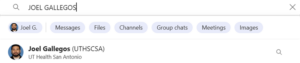
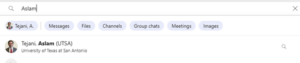
- “UTHSCSA” or “UTSA” will appear after a user’s name if they are enabled for MTO.
- From the academic campus, health campus users will appear with “(UTHSCSA).”
- From the health campus, academic campus users will appear with “(UTSA).”
For example, from the academic campus, if you are searching for a user from the health campus, you will see (UTHSCSA) after their name:
From the health campus, if you are searching for a user from the academic campus, you will see (UTSA) after their name:
- Join Microsoft Teams calls without waiting in the lobby
- For Microsoft Teams calls organized by either the academic or health campus, MTO enabled users can now join directly without waiting in the meeting lobby.
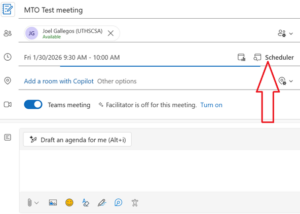
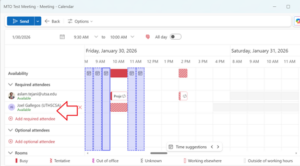
- View free/busy availability in Outlook
- Users are now able to see the free/busy availability in Microsoft Outlook calendar when scheduling meetings.
- Send emails without external banner
- Users can send and receive emails from cross-tenant users. Email received from a cross-tenant user will not be marked with the institution’s EXTERNAL banner.
What MTO does not do
- Does not merge UTSA and UT Health San Antonio email systems
- Does not automatically transfer files or OneDrive content
- Does not eliminate the need to switch tenants to access Teams owned by the other campus
Known limitations and timing considerations
- Newly added users to MTO may take up to approximately 72 hours to be fully enabled
- Microsoft Outlook “free” or “busy” visibility is available when scheduling meetings only
- Other MTO limitations may vary as Microsoft continues to develop this tool
Implementation timeline and phases
- University faculty and staff from the following offices from both the academic and the health campuses have already been enabled for MTO:
- Enterprise Operations and Strategy
- Academic Affairs
- Research and Innovation
- The following additional offices will be enabled by May 15, 2026
- Advancement and Alumni Engagement
- Athletics
- Government Relations
- Legal Affairs
- Marketing, Communications and Media
- President’s Office
Learn more
Visit the UT San Antonio MTO website for further information.
Additional help
For assistance, please contact the appropriate IT support group:
Academic Campus
- Email: [email protected]
- Tech Café: https://www.utsa.edu/techsolutions/techcafe/
- Phone: 210‑458‑5555
Health Campus
- Email: [email protected]
- My Service Center: https://uthscsa.teamdynamix.com/TDClient/2009/Portal/Home/
- Phone: 210‑567‑7777
Clinical Support
- Email: [email protected]
- Phone: 210‑450‑4800 or 210‑450‑HELP